Documents
Query, browse, and manipulate MongoDB documents in Mingo with smart search, date shorthands, conditional formatting, and undo support.
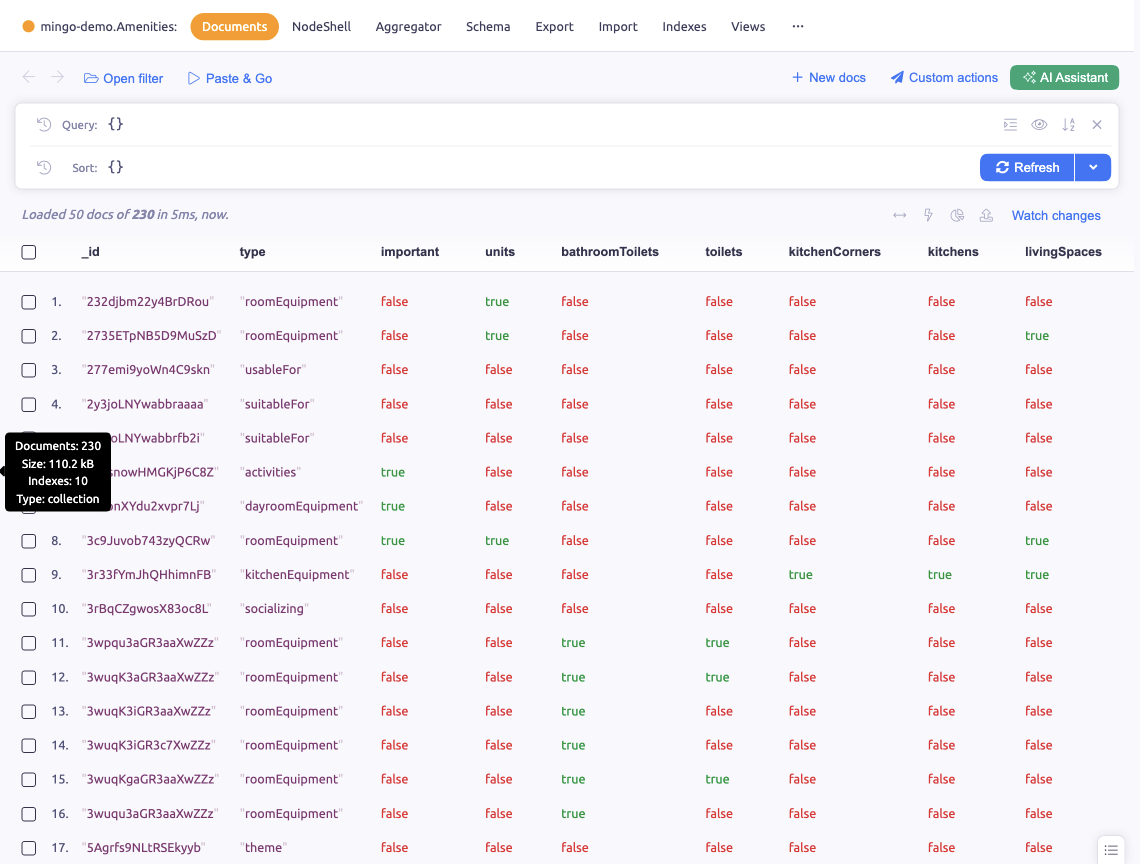
Mingo's Documents section is the primary interface for browsing, querying, and editing MongoDB documents.
Querying

Query Input
Type MongoDB queries in the filter bar using standard JSON query syntax. Mingo provides auto-suggestions for field names, operators, and values as you type based on your collection's document structure.
Smart Search
Mingo automatically adds missing quotes. For example, {user.lastName: "Pear"} becomes {"user.lastName": "Pear"}.
You can also search indexed fields directly by typing a value: Amsterdam or /amsterdam/i instead of writing structured queries.
Date Shorthands
Use human-readable date shorthands in queries:
- Durations (prefixed with
#):#lastWeek,#thisMonth,#last2days,#next3years - Moments (prefixed with
@):@2021-11-22for exact date matching
Regular Expressions
Query using patterns like {firstName: /david/i} for case-insensitive matching.
Query History
Click the Query label to access your query history. Click the Sort label to access sort history with default index-based sorting options.
Named Queries
Save queries for reuse or set collection-level defaults for frequently used filters. Named queries are shared across project environments.
Format and Reset
- Format Query — formats and indents queries for readability
- Reset Query — restores default settings or your saved default query
Keyboard Shortcuts
- Cmd+Enter or Enter — submit query (configurable in settings)
- Cmd+R — refresh/reload documents
- Cmd+S — focus query input
- Cmd+G — paste clipboard content and execute (Paste and Go)
Browsing Documents
Documents display 50 per page. Click a document to view its content. Click fields to expand subdocuments. Cmd+click expands recursively.
Table Columns
- Add — click "+" in column headers
- Remove — select "Unpin" from column header
- Sort — click column header for sorting options
- Align — adjust text alignment via column header menu
- Resize — use header icons for width options or drag handles
- Reorganize — drag headers to reorder
- Format — use "Customize" for conditional formatting
Column configurations are saved per collection and shared across project environments.
Editing Documents
Inline Editing
Double-click a field value or press E while hovering to edit it inline. Changes are saved immediately.
Document Editor
Right-click a document and select Edit to open the full document editor. You can edit the entire document as JSON.
Insert Documents
Use the Insert button or right-click menu to add new documents. You can insert single documents or paste JSON arrays for bulk inserts.
Delete Documents
Right-click a document and select Delete to remove it. For bulk deletion, select multiple documents first.
Multi-Document Selection
- Select all — click table header checkbox or press Cmd+A
- Individual — hover and press Space; Shift+click for ranges
- "Selecting all" includes documents not currently visible on the page
Selected documents can be deleted, exported, or have bulk operations applied.
Field Actions
Right-click fields to access field-level actions:
- Copy value — copy the field value to clipboard
- Edit value — modify the field inline
- Foreign Keys — click
_idvalues to find related documents in new tabs - Long Values — truncated values expand on click
- URLs — clickable links open in your default browser
Undo
Undo is available for insert, update, and delete operations. Press Cmd+Z to view recent changes and select actions to reverse.