Databases
Manage databases in Mingo with write-lock protection, collection management, and database operations.
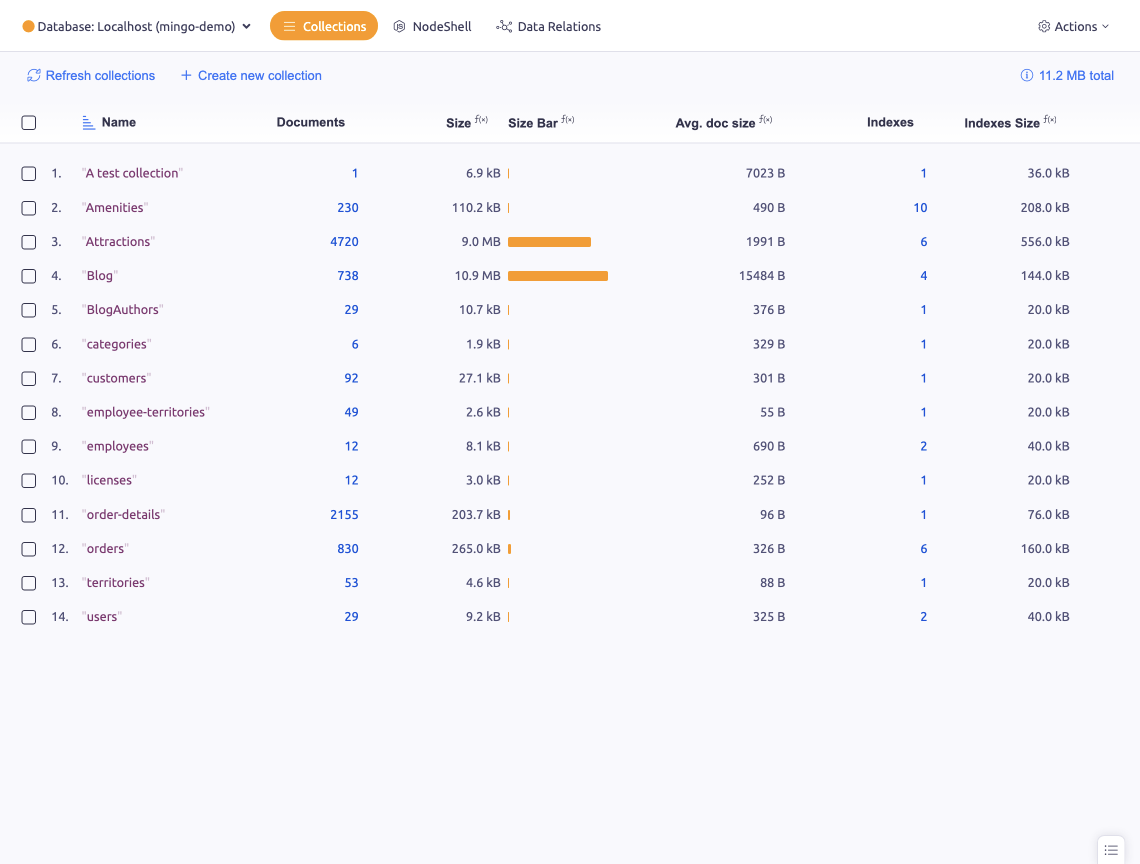
The Database view shows all collections in a database with their statistics and provides database-level operations.
Write-Lock
Write-Lock prevents unintended changes on documents of a locked database. Databases are locked by default.
You can unlock a database via the database context menu. When attempting a write action on a locked database, Mingo prompts you to confirm whether to unlock for 10 minutes or permanently.
This is a safety feature to prevent accidental modifications on production databases.
Collections List
The database view displays an alphabetical listing of all collections with basic statistics including document count and size.
Right-clicking rows enables collection-level actions like opening, dumping, renaming, or dropping. A Create new collection button allows adding new collections.
Creating a Database
New databases are created via the Create Database button in the sidebar. You must have appropriate MongoDB privileges to create databases within a connection.
Refreshing a Database
Manually refresh database information via the right-click context menu (Refresh), though Mingo performs automatic background updates.
Dropping a Database
Drop an entire database through the context menu. Confirmation is required before the operation proceeds. This action is irreversible.